Your Privacy Choices
We use optional Google Analytics cookies to understand visits and improve our site. Analytics stays off unless you accept. Essential services still work if you reject. Your choice is saved for 180 days; change it anytime using Cookie Settings in the footer. Privacy Policy
How to Find Your Twitch Stream Key
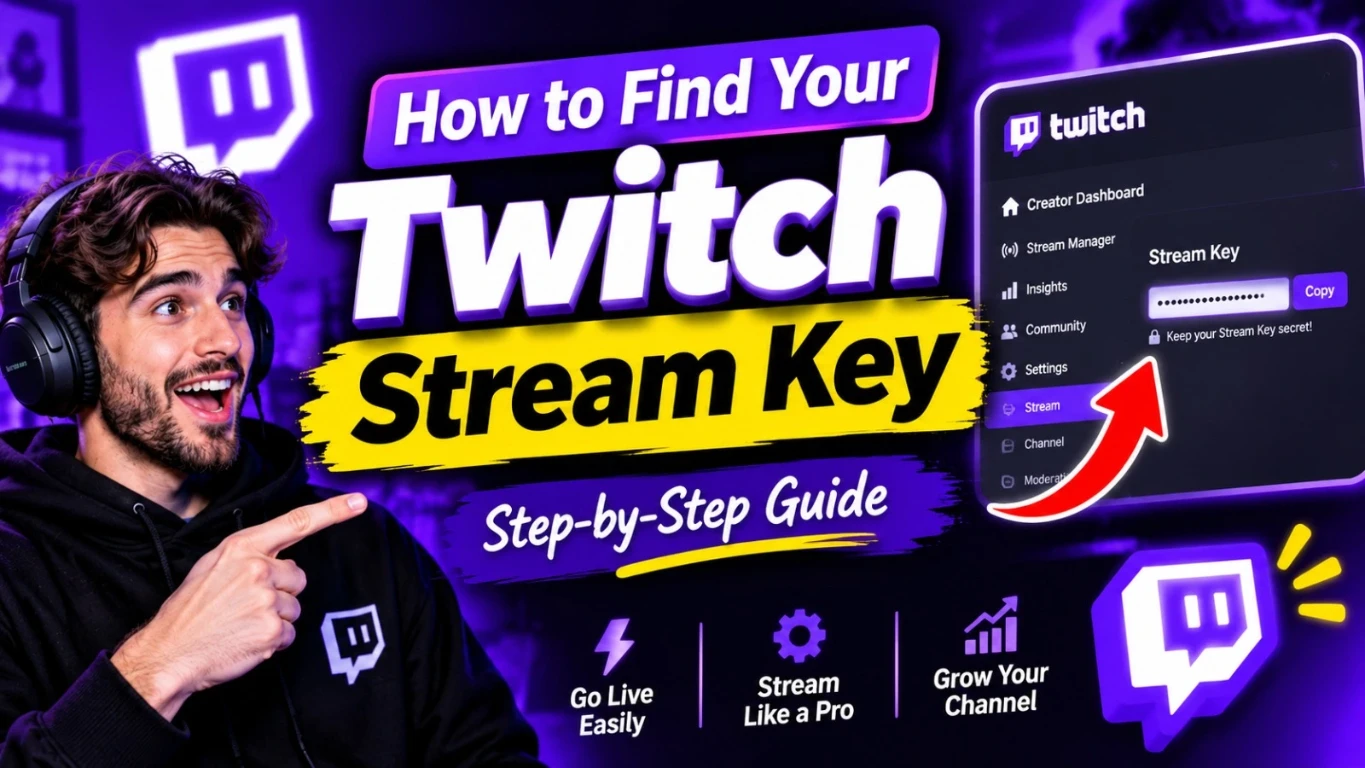
How To Find Your Twitch Stream Key And Use It Safely
Getting started on Twitch can be exciting, but setting up broadcasting software can be confusing if you do not know where to start. If you want to connect your software manually, you will need your Twitch stream key. Software such as OBS (Open Broadcaster Software) Studio can use this key to send your live video stream to your channel.
Once you know where to look, finding this key is easy. Privacy is crucial, though: someone who gets access to it may be able to broadcast on your channel. In this tutorial, we will cover finding your stream key, connecting it to OBS Studio, and keeping it safe.
How To Find Your Twitch Stream Key
To find your key, follow these instructions:
- Open Twitch and log in to your account.
- Click your profile picture in the upper-right corner.
- Select Creator Dashboard.
- Open Settings and choose Stream.
- Look for the Primary Stream Key section.
- Click Copy to copy your key.
You can now use your stream key with compatible broadcasting software. Do not show it while screen sharing or live streaming.
How To Use Your Stream Key In OBS Studio
After copying the key, follow these steps to connect it to OBS Studio:
- Open OBS Studio on your computer.
- Open Settings and select Stream.
- Select Twitch as your streaming service.
- For a manual connection, choose the option to use a stream key.
- Paste your key into the Stream Key field.
- Click Apply, then OK to save your settings.
- Configure your game capture, microphone, webcam, and other sources.
- When you are ready, click Start Streaming.
How To Keep Your Twitch Stream Key Safe
Treat your stream key like a password. To protect your channel, follow these tips:
- Never reveal it in public: Do not put your key in a screenshot, social media post, or public chat.
- Use trusted software: Only enter it into trusted broadcasting applications.
- Secure your account: Use a strong, unique password and turn on two-factor authentication.
- Watch for unusual activity: Look for broadcasts or channel changes that you did not authorize.
- Reset an exposed key: If someone else has access to it, generate a new key in your stream settings.
What To Do If Your Twitch Stream Key Leaks
If your stream key is compromised, reset it immediately through Creator Dashboard > Settings > Stream. Resetting gives you a new key and prevents the old key from being reused to start a broadcast. Before streaming again, replace the key in OBS Studio or any other broadcasting software that uses it.
Please note: Resetting the Primary Stream Key does not invalidate guest stream keys issued separately. If you have shared guest keys, review and manage them individually to keep your channel safe.
Common Twitch Stream Key Problems And Fixes
If your stream does not start, check that you copied the correct key without extra spaces. Confirm that Twitch is selected as your streaming service in OBS Studio and that your internet connection is working.
If you recently changed your Twitch password or reset your key, update the key in your software or reconnect your Twitch account. For persistent problems, consult Twitch Support or the OBS Studio documentation for troubleshooting guidance.
FAQs
Do I Need A Stream Key To Use OBS Studio?
No. You can connect OBS Studio directly to your Twitch account. Manual setup using a stream key is another option.
Is It Safe To Share My Twitch Stream Key?
No. Someone with access to your key may be able to broadcast to your channel. Keep it private and reset it if it becomes exposed.
How Do I Reset My Twitch Stream Key?
Visit Creator Dashboard > Settings > Stream and use the reset option beside your Primary Stream Key. Update your streaming software afterward.
Does My Twitch Stream Key Change Automatically?
Your key generally remains the same until it is reset. Twitch may also reset it when you change your account password, so check your streaming setup afterward.
Can I Find My Twitch Stream Key On Mobile?
You can try accessing Twitch through a mobile browser and switching to desktop mode. However, using a computer is generally easier. Twitch's built-in mobile streaming feature does not require you to enter a stream key manually.
What Should I Do If My Twitch Stream Key Stops Working?
Check for copying errors and confirm that your software uses the current key. If necessary, reset it through your Twitch settings and update your broadcasting software.
Can You Stream On Twitch Without A Stream Key?
Yes, you can connect your Twitch account directly to streaming software like OBS Studio without entering a stream key manually. Twitch's mobile streaming feature also lets you go live without setting up a key.
Can Someone Hack Your Twitch Account With A Stream Key?
Someone with your stream key may be able to broadcast unauthorized content on your channel, but the key alone does not automatically give them full access to your Twitch account. If it leaks, reset it immediately to protect your channel.
Conclusion
Finding your Twitch stream key is straightforward once you know where to look. You can copy it from your Creator Dashboard and use it in OBS Studio, or connect your Twitch account directly without entering a key manually. Most importantly, keep your key private and reset it immediately if it is exposed. With the right setup and basic security precautions, you can focus on creating engaging streams and growing your Twitch audience.
Ready To Apply These Strategies?
Give your channel the initial boost it needs to get noticed by the algorithm.
Explore Growth PackagesAbout The Author

Helping creators navigate the complex world of live streaming algorithms and community building.